
Worship Att Report
This report is designed for churches that track individual attendance (not just a headcount) in their worship service, in addition to individual attendance in Main Fellowship Involvements. The report displays the members and their attendance averages for both the worship Involvement and their Main Fellowship Involvement.
Note
It reports attendance only for members of those Involvements, not for guests.
- Contents of the report
The report opens in Excel and contains one row per person with the following information in columns:
People ID #
Name
Age
4, 12, 26 and 52-week Worship Attendance Average (as a percentage)
4, 12, 26 and 52-week Main Fellowship Attendance Average (as a percentage)
Attendance String for Worship Attendance
Explanation of Average Attendance
The average is computed as the number of meetings the person actually attended as a member divided by the total number of meetings he could have attended as a member.
If a person has an average of 0, that means there were meetings and he did not attend any of them, even though he was a member during that time frame.
If a person has an average that is blank, that means that there were no meetings for him to have attended as a member.
Requirements
A user with the Admin role must add the following setting at Admin > Advanced > Settings using Add Setting. After it is added, it appears on the General tab.
Setting Code = WorshipId
Setting Value = the Involvement ID number for the Worship Service Involvement
- Finding the Involvement ID#
You will find the Involvement ID at the end of the URL when you are viewing the Involvement itself. In this sample URL,
MyChurch.tpsdb.com/Org/77, the Involvement ID is77.
Important
You can have only one WorshipId in the Settings.
Therefore, in order for this report to be most effective,
you should have your worship attendees enrolled in just one worship Involvement,
even if you have multiple services.
In these cases, you can add multiple Schedules for that Involvement.
- Main Fellowship
For each individual included in the report, the system is looking to see if he is enrolled in an Involvement that is flagged as a Main Fellowship class in order to display the MF Attendance. Therefore, you need make sure that your Main Fellowship classes are flagged accordingly. This is a checkbox on the Involvement header.
See also
- Run the Report
You can run this report anywhere that you see the blue Toolbar. It is under the cloud (download) icon > Other Exports and is named Worship Attendance. If you do not have the
WorshipIdsetting in your database, you will not see that option listed. The option is also hidden for users whose Blue Toolbar is limited.
Sample
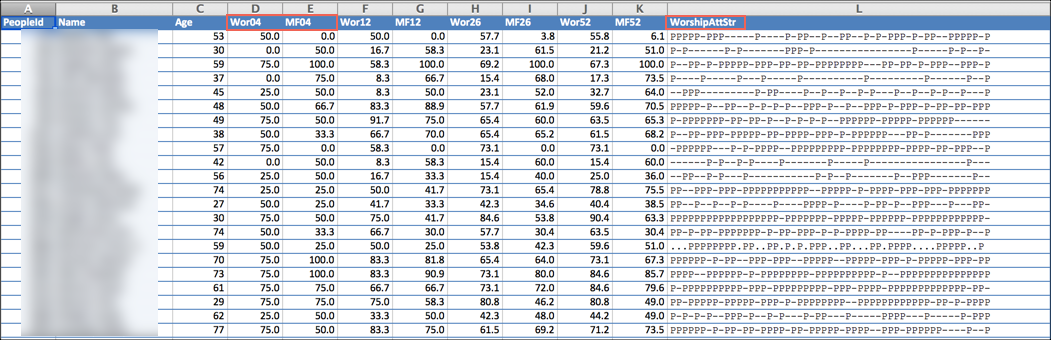
This is a sample report. Notice each weekly increment has 2 columns - one for Worship (Wor) and one for the Main Fellowship Class (MF). The last column contains the attendance string for the Worship Involvement.
- Options
You have several options for how to run this report.
You can go to a Main Fellowship class and run this report for the members of that Involvement,
You can create a search and generate the report after you run the search so those listed will be those in your search results,
You can go to any Involvement and run this report. It does not need to be a Main Fellowship class. For example, you might want to run this for a Deacon/Elder Involvement to see the Main Fellowship and Worship attendance for your leaders.
Just remember, that the attendance will display only for those who are enrolled as members of both the Worship Involvement and a Main Fellowship Involvement. It will not give the attendance for the Involvement you are viewing if it is not a Main Fellowship class.
Tip
If you find this report helpful, you may also be interested in the Recent Absents Report 2. This report also is designed for churches that track individual attendance in their Worship Service as well as in other types of Involvements.
See also
Latest Update |
10/19/2026 |
Updated the Settings path and Involvement URL, noted that averages are shown as percentages, and noted the export is hidden for users with a limited Blue Toolbar.