
Donor Total Summary Export
This report is generated from Finance > Reports, under Range Reports, by selecting Donor Total Summary. You must have the Finance role to see this report in the menu. When generating the report, you select the date, number of years to compare (default 5), Fund (optional), Campus (optional), and Minimum Median Total (default 100). If your church uses Custom Fund Sets, you can also select a Fund Set. The report will combine family totals as a unit.
Note
This report looks backwards the number of years you specify, so the “Start Date” is actually the end date for the most recent year you want to compare. For example, if you enter a Start Date of 12/31/2018 and the Number of Years as 5, the report will compare 2014, 2015, 2016, 2017, and 2018.
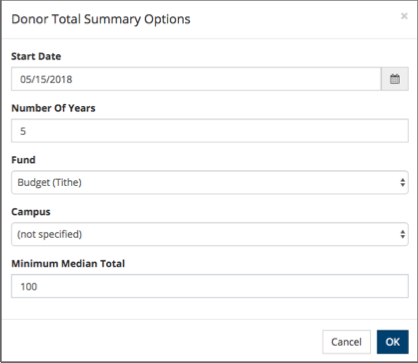
Input Dialog
This export will generate an Excel workbook with 3 tabs to analyze your contributions by year based on the following:
- Tab 1 - MemberNon
This page contains separate totals for Members and NonMembers with dollar amounts and the number of donor units, along with the mean and median for each.

MemberNon
- Tab 2 - BySize
This page contains columns for dollar amounts from <=1K, 5K, 15K, 25K, 50K, 100K, and >100K showing dollar amount totals and the number of donor units.

BySize
- Tab 3 - ByAge
This page contains columns for ages <=25, <=35, <=50, <=65 and >65 showing dollar amounts and number of donor units. A final column (=0) shows donors who do not have an age on their record.

ByAge
Latest Update |
10/23/2026 |
Updated the navigation path, role requirement, report options, and ByAge columns.