
Push Notifications
The mobile app can deliver three different kinds of messages to your members. All three are sent from the same Send Message/Notification page in TouchPoint and are tracked in the same Notifications Log.
Note
Push Notifications require version 3.10 or later of the mobile app.
Notification Types
Push Notification
Delivered to the device itself. The message appears on the lock screen or in the device’s notification center even when the app is closed, the same way any other app notifies the user.
Title limit: 85 characters
Body limit: 500 characters
Reaches only people who have the app installed, are signed in, and have allowed notifications on their device
Alert Banner
A banner pinned to the top of the member’s feed the next time they open the app. It stays there until the member dismisses it or its expiration date passes.
Title limit: 85 characters
Message limit: 1,000 characters
System Message
A message delivered to the member’s message feed inside the app. It waits there until the user opens the app, so it does not depend on anyone being signed in at the moment you send it.
Title limit: 85 characters
Message limit: 1,000 characters
Tip
An Alert Banner or System Message can also send a push at the same time. Use the Send Push Notification checkbox on those two types to get the member’s attention on the device while leaving the full message waiting for them in the app.
Enabling Notifications
The notification settings are found under Admin > Communication > Mobile App > Settings on the Features > Notifications tab, and require the Admin or AppAdmin role.
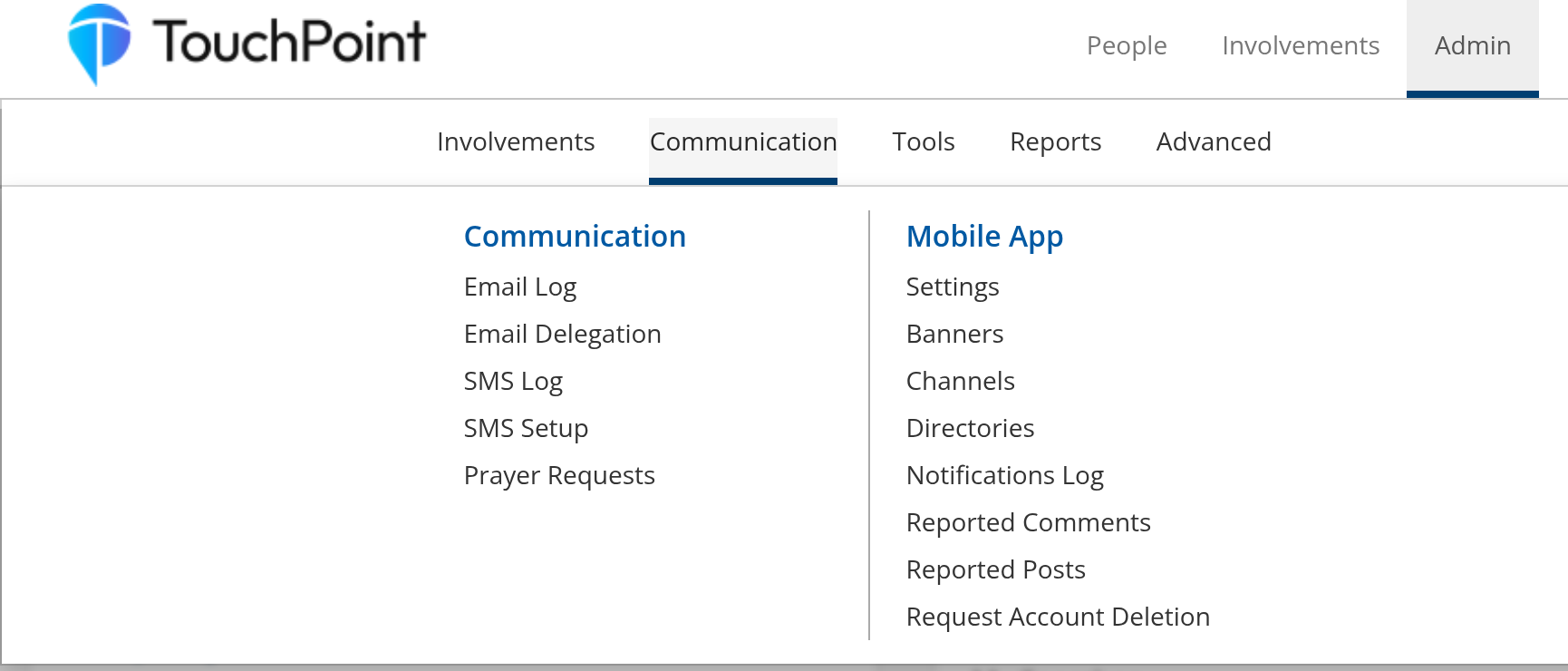
The Mobile App section of the Admin > Communication menu
Setting |
Default**| **Purpose |
|
|---|---|---|
Enable Push Notifications |
False |
Turns on the Push Notification type. Must be True before anyone can send a push |
Enable Alert Banners |
True |
Turns on the Alert Banner type |
Enable System Messages |
True |
Turns on the System Message type |
Enable Channel Post Notification |
False |
Notifies members when a new post is added to a channel they follow |
Enable Chat Notification |
False |
Notifies members of new chat messages |
Enable Prayer Request Notification |
False |
Notifies members when a new prayer request is posted |
Enable Prayer Received Notification |
False |
Notifies a member when someone prays for their request |
Enable Comment Added Notification |
False |
Notifies a member when someone comments on their post |
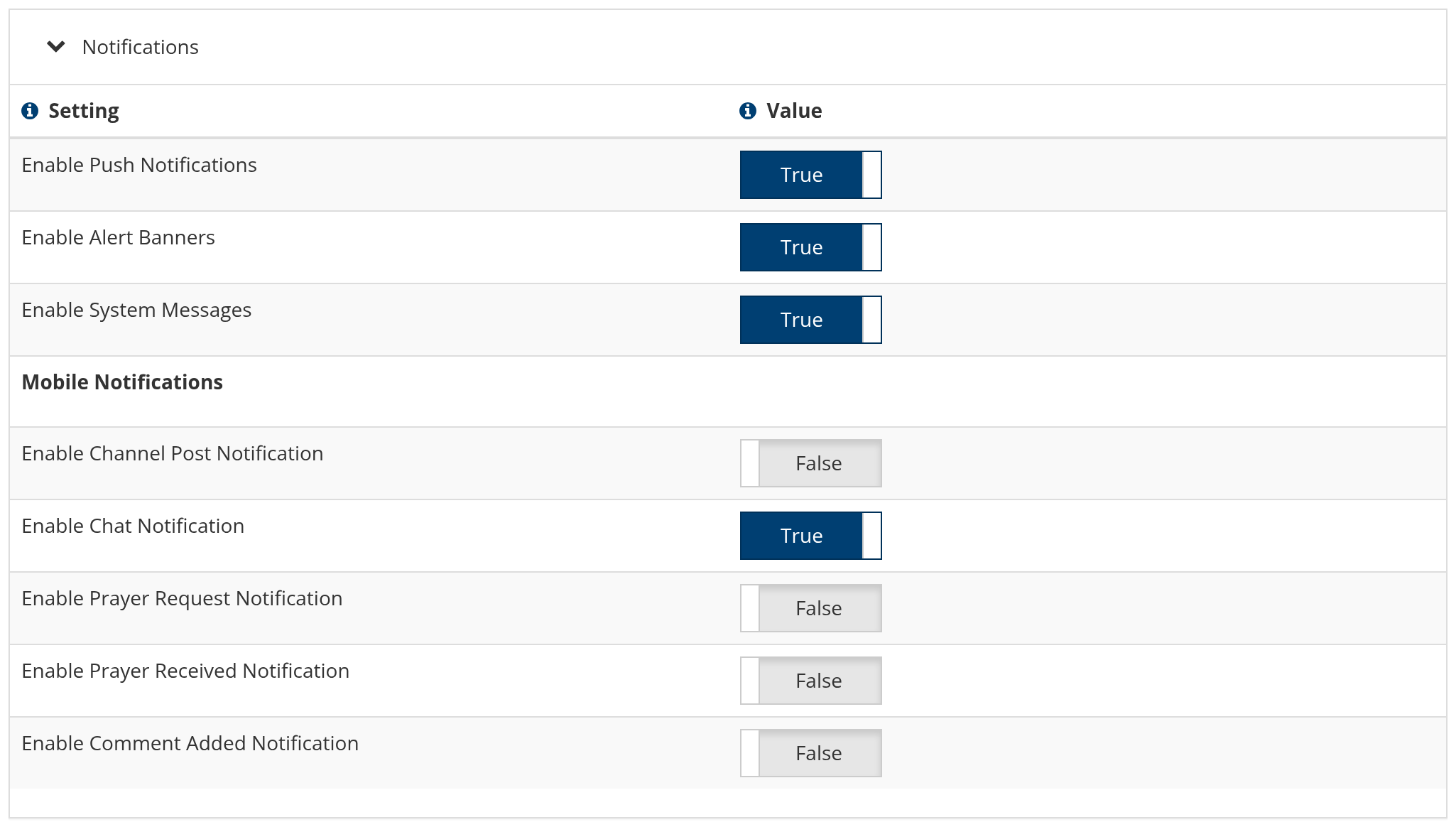
The Notifications settings on the Mobile Application Settings page
Note
Enable Push Notification Images is turned off and hidden by default. Images in push notifications are enabled per church on request - contact TouchPoint Support if you would like this feature turned on.
Sending a Notification
Getting to the page
Build or run a search that returns the people you want to notify.
On the blue toolbar, open the Email menu.
Under the Mobile heading, choose Send Notification.
This opens the Send Message/Notification page for that search.
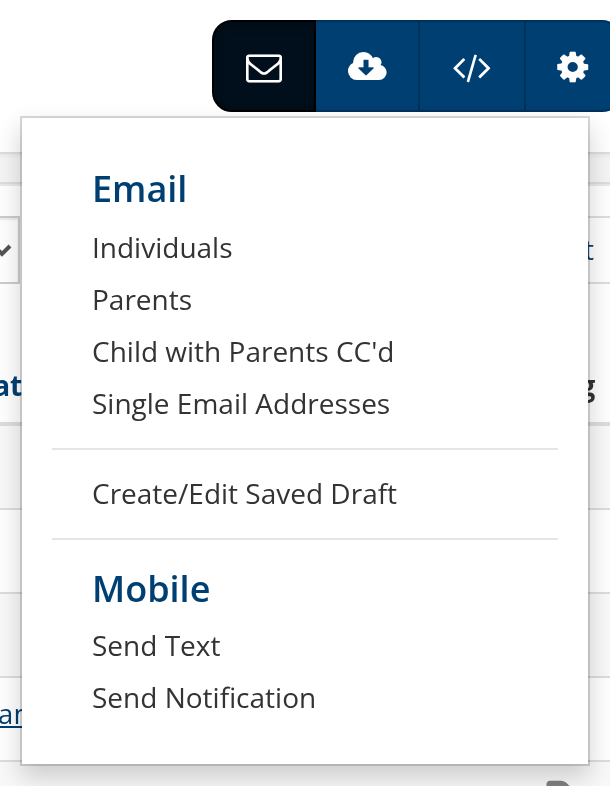
Send Notification under the Mobile heading of the blue toolbar’s Email menu
Roles required
Sending a Push Notification requires the Admin, ManageSMS, or SendSMS role. Without one of these, the Push option does not appear and only Alert Banners and System Messages are available.
Sending To
The top of the page shows who your search will actually reach:
Active Mobile Users - people with the app who can receive a push right now
Inactive Mobile Users - people in your search who do not have an active device
Opted Out - people who have turned off notifications themselves. Shown only when you are sending a Push Notification
Click any of these counts to see exactly who is in that group.
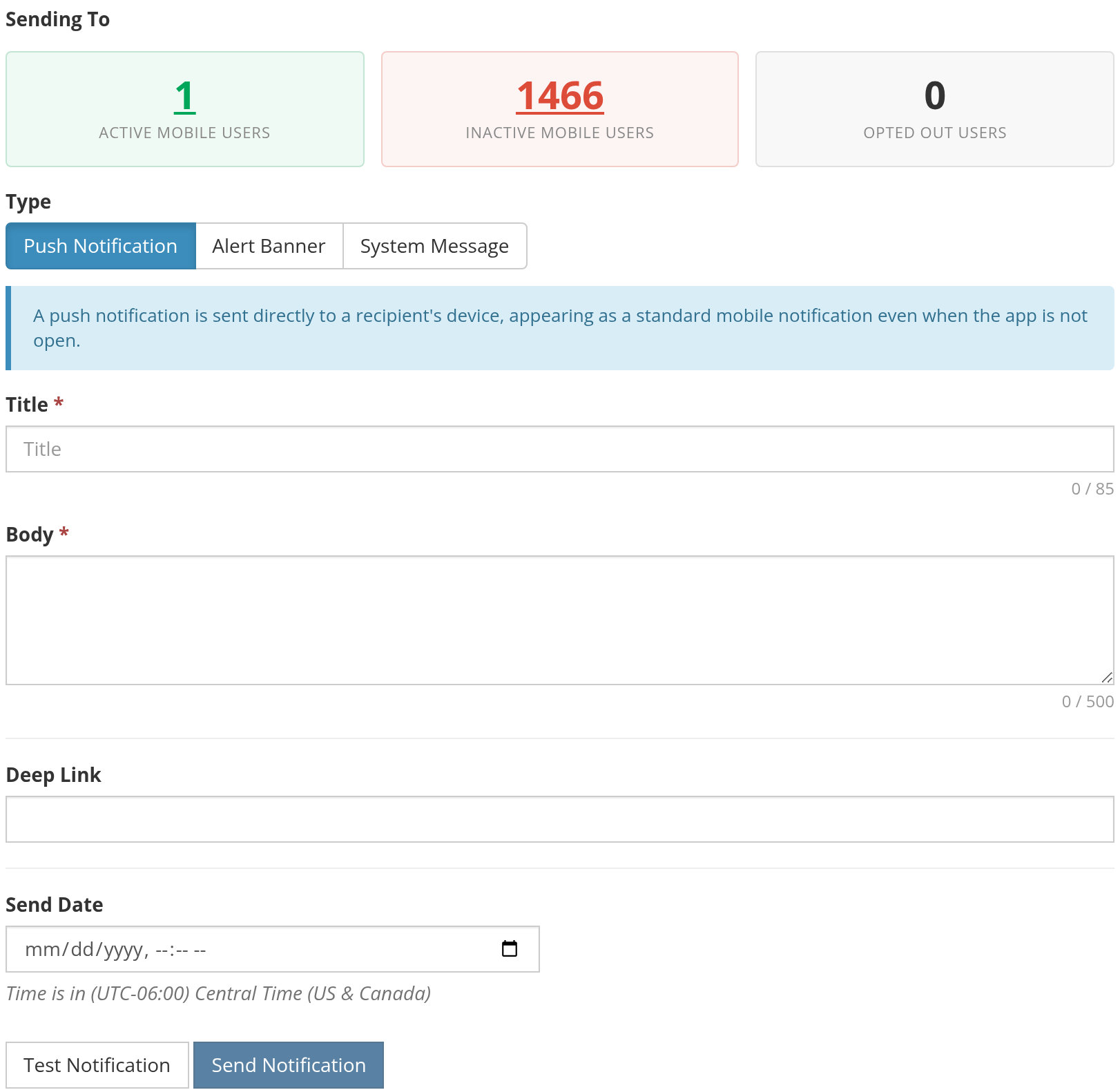
The Send Message/Notification page with the Push Notification type selected
Note
A Push Notification cannot be sent if no one in the search has a push-enabled device. Alert Banners and System Messages only require that someone in the search has the app, since those messages wait in the app until the member opens it.
Completing the message
Title - required, 85 characters
Body / Message - required. 500 characters for a push, 1,000 for a banner or app message. A character counter warns you as you approach the limit
Image - an image to display with a push notification. Paste a URL or upload a PNG, JPG, or GIF. Only shown when your church has push images enabled
Deep Link - where the notification takes the member when they tap it. See Deep Links for the links you can use here
Send Date - leave blank to send immediately, or schedule it for later. The time you enter is your church’s local time, which is shown beneath the field
Expiration Date - when an Alert Banner should stop displaying. Alert Banners only
Send Push Notification - on an Alert Banner or System Message, also send a push
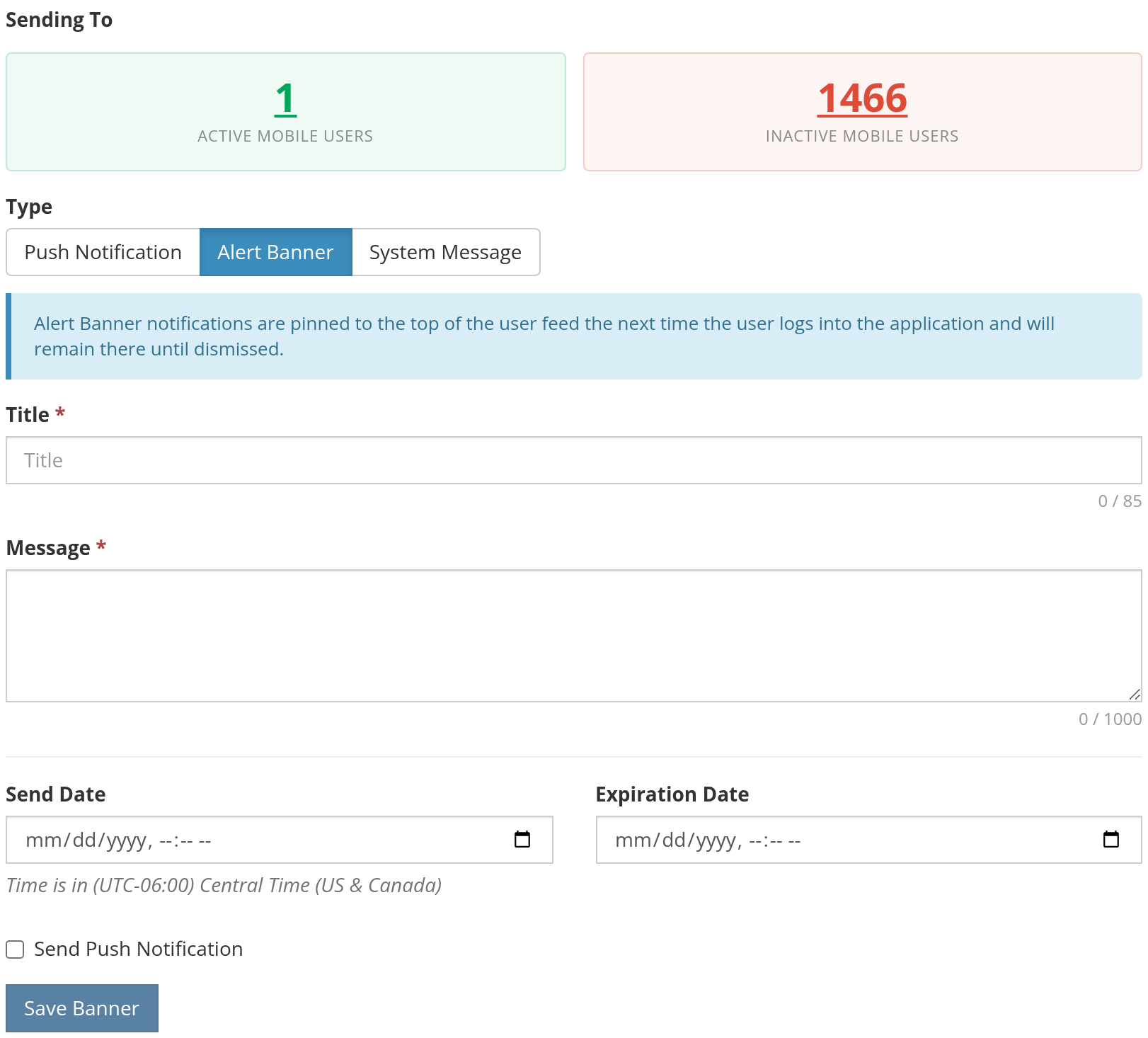
The Alert Banner type, with its Expiration Date and Send Push Notification options
Testing before you send
When you are composing a Push Notification, use Test Notification to send the message to yourself first. This is the best way to confirm your title, image, and deep link all behave the way you expect before sending to the whole list.
Use Case
To promote a last-minute schedule change for a retreat, run a search for the Involvement’s members, choose the Push Notification type, set the Deep Link to the event so members land on the retreat screen when they tap, and use Test Notification to check it on your own phone. Then send. Members see the alert on their lock screen and arrive on the event in one tap.
Notifications Log
The Notifications Log shows everything that has been sent or scheduled. Go to Admin > Communication > Mobile App > Notifications Log. This page requires the AppAdmin role.
Filtering
Filter by date range, notification type, or use Quick Search to find a notification by keyword.
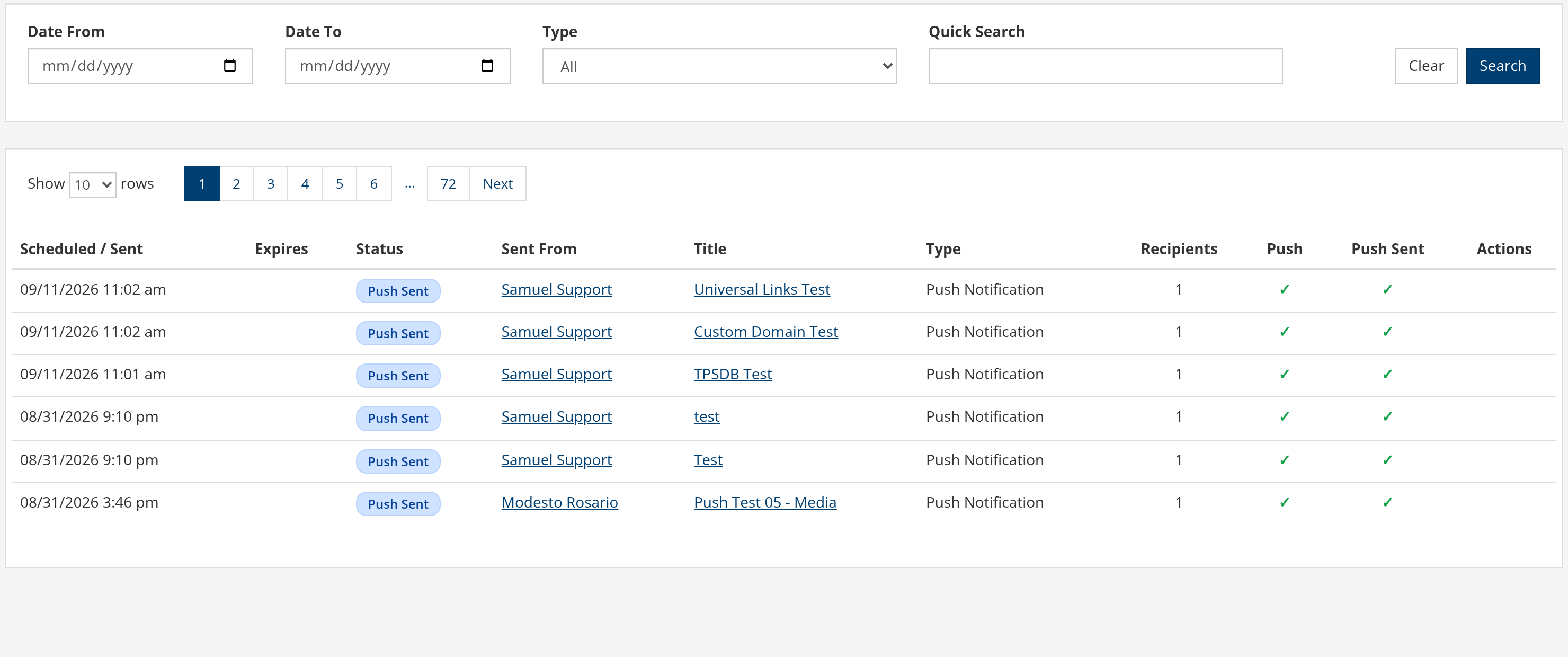
The Notifications Log, with its filters and delivery columns
Columns
Column
Shows
Scheduled/Sent
When the notification went out, or is set to go out
Expires
When an Alert Banner stops displaying
Status
Whether the notification is scheduled, sent, or expired
Sent From
Who sent it. Links to that person’s record
Title
The notification title. Click to see delivery detail
Type
Push Notification, Alert Banner, or System Message
Recipients
How many people it was sent to
Push
Whether a push was attached
Push Sent
Whether that push has actually gone out
Delivery detail
Click a notification’s title to open its detail, including the list of recipients. When a push was attached, the delivery detail also shows how the push was delivered.
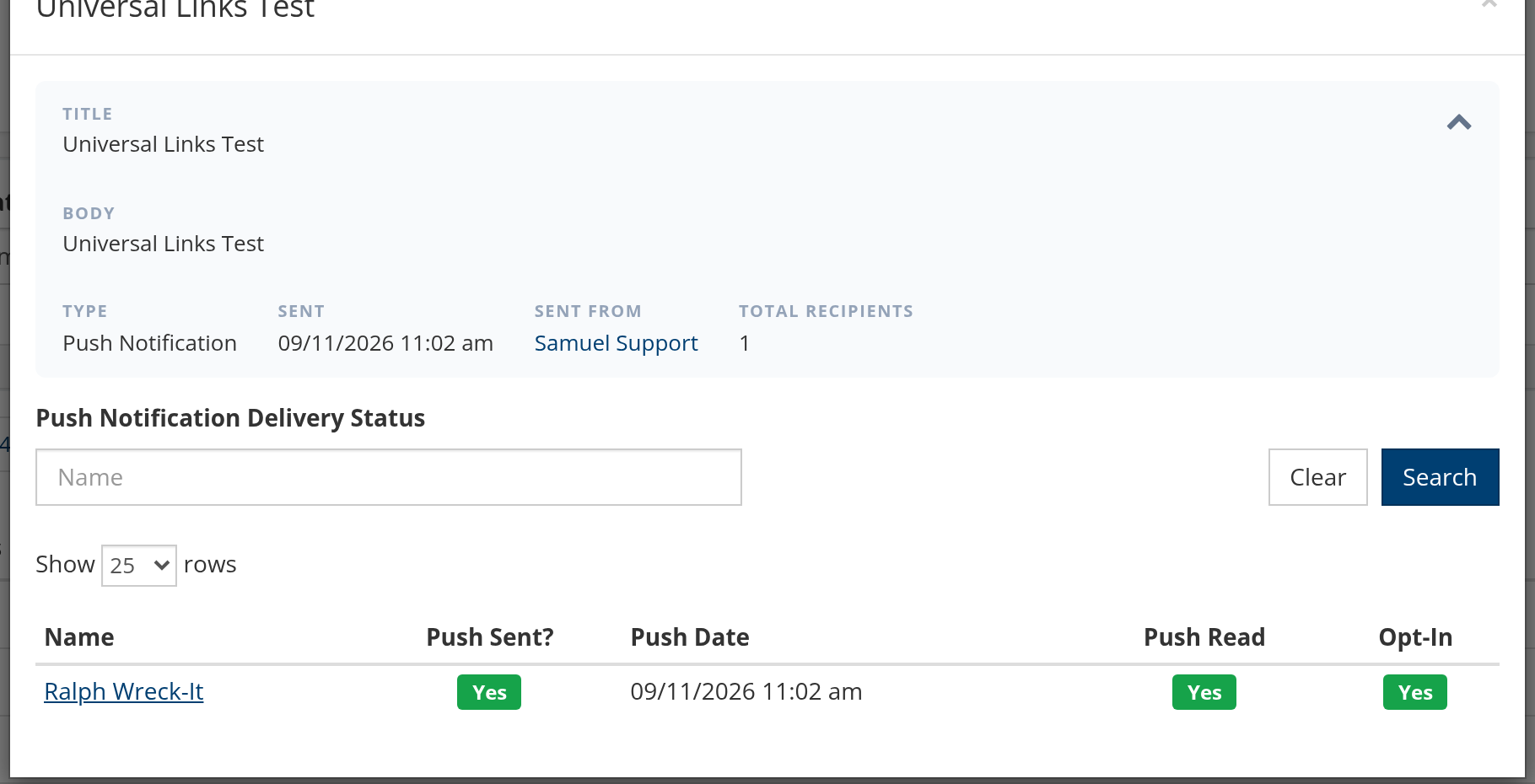
Delivery detail for a Push Notification, showing each recipient’s delivery status
Stopping and deleting
Stopping and deleting require the Admin or ManageSMS role.
Stop ends an Alert Banner or System Message early, before its expiration date. A Push Notification cannot be stopped, because a push is delivered to the device immediately and cannot be recalled
Delete removes the notification. A notification with a push attached can only be deleted while that push is still scheduled - once the push has fired, it can no longer be deleted
Caution
A Push Notification cannot be recalled once it is sent. Use Test Notification to check your message first, and use the Send Date field if you want a window in which you could still cancel.
An individual person’s notification history is also available on their record, on the Communications tab.
What Members See
Receiving a notification
A push arrives on the member’s device like any other app notification. Tapping it opens the mobile app - and if a Deep Link was included, it opens directly to that screen with the member already signed in.
Alert Banners appear inside the app until they expire. System Messages are collected in the app’s Notifications list, reachable from the app’s menu.
Member preferences
Members control what they receive from Settings > Push Notifications in the mobile app, where each category of notification can be turned on or off individually.
Members who have turned notifications off appear in the Opted Out count on the Send Message/Notification page, and they do not receive pushes regardless of how your church settings are configured.
Note
A member must also allow notifications for the app at the device level, in their phone’s own settings. Someone who denied that prompt will not receive pushes even though nothing in TouchPoint shows them as opted out.
Latest Update |
09/14/2026 |
New article documenting mobile app push notifications, including the three notification types, the settings that enable them, sending and testing, the Notifications Log, and member notification preferences. Added screenshots of the Admin menu, the Notifications settings, the toolbar menu, the Send Message/Notification page, the Notifications Log, and a notification’s delivery detail. Renamed the App Message type to System Message to match the application, and clarified how an Alert Banner is displayed and dismissed.