
Sermon Notes User Guide
The Sermon Notes feature allows you to take personal notes on sermons you’ve listened to or attended. You can create, view, and edit notes for any sermon, making it easy to capture key points, insights, and reflections.
Accessing Sermon Notes
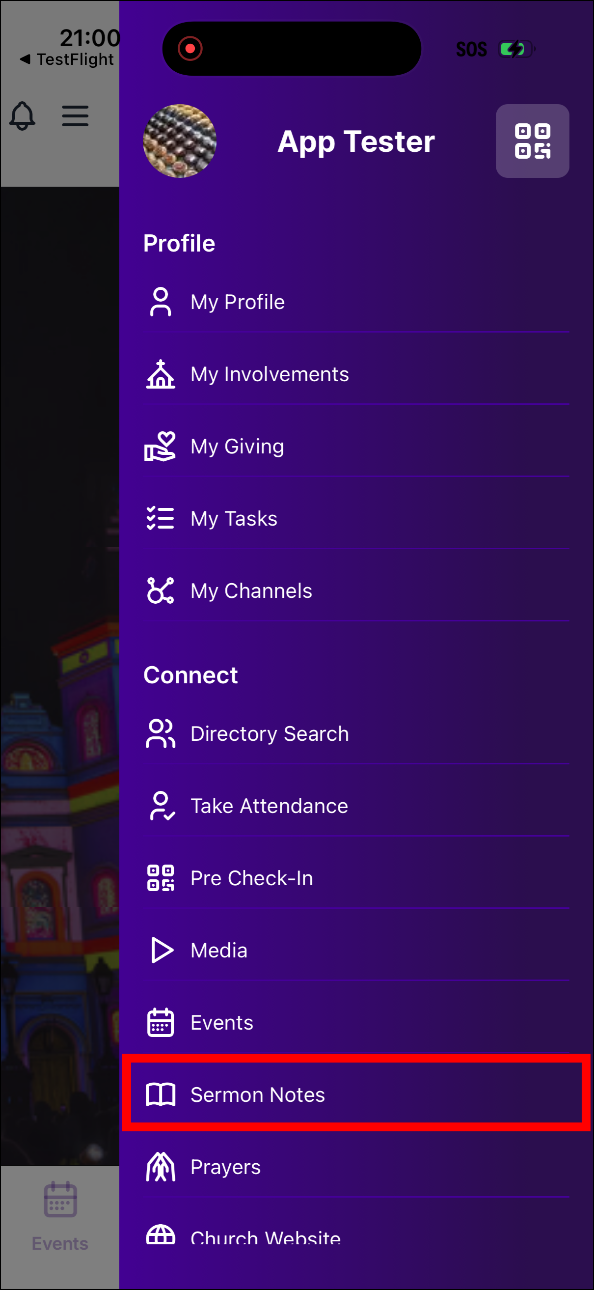
Open the mobile app and navigate to the Sermon Notes section from the main navigation menu or tab bar.
The Sermon Notes screen displays a calendar view showing all available sermons.
Calendar View
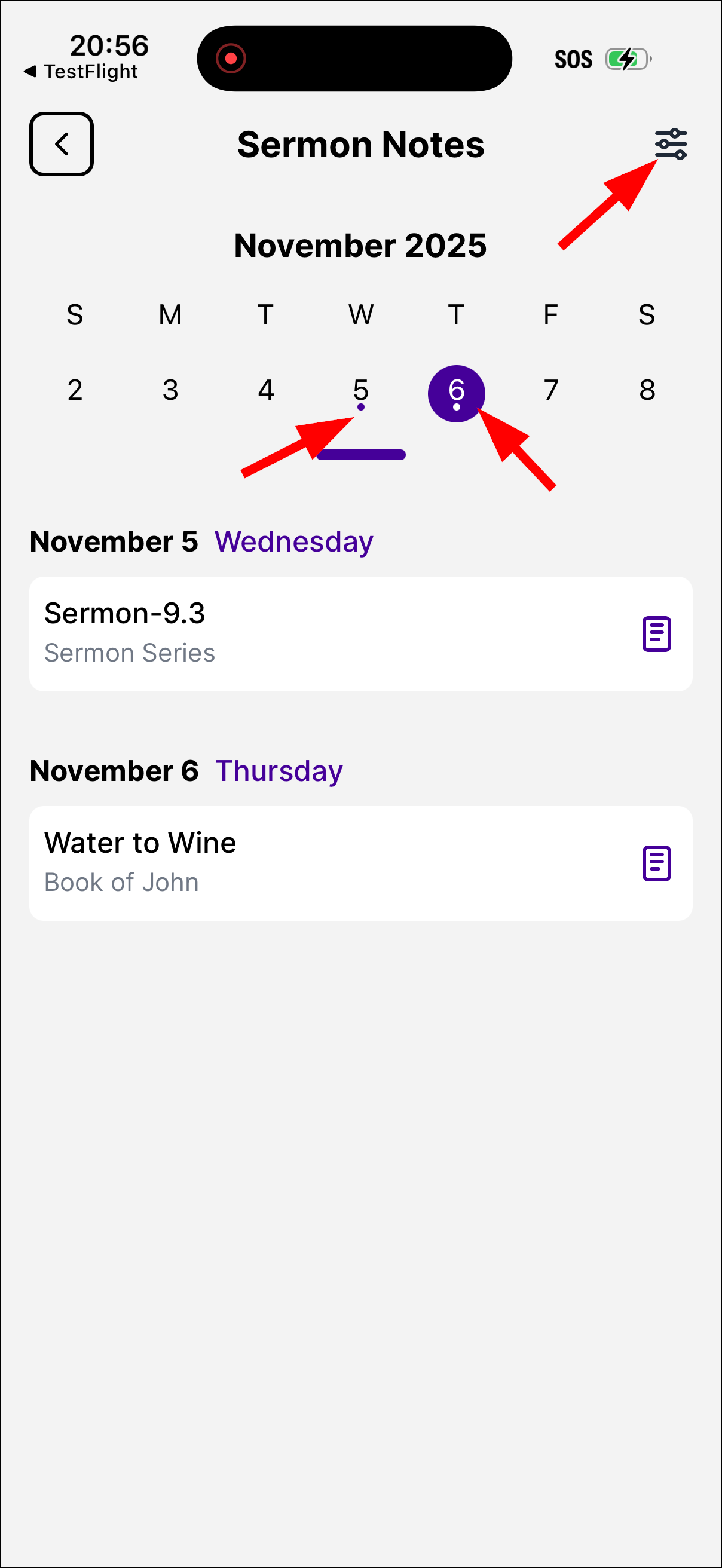
The main screen shows an expandable calendar that you can scroll through to find sermons by date.
Sermons are organized by date, with each day showing the sermons available.
Dots on calendar dates indicate days that have sermons available.
Tap on any date with a dot to view sermons for that day.
Sermon Cards
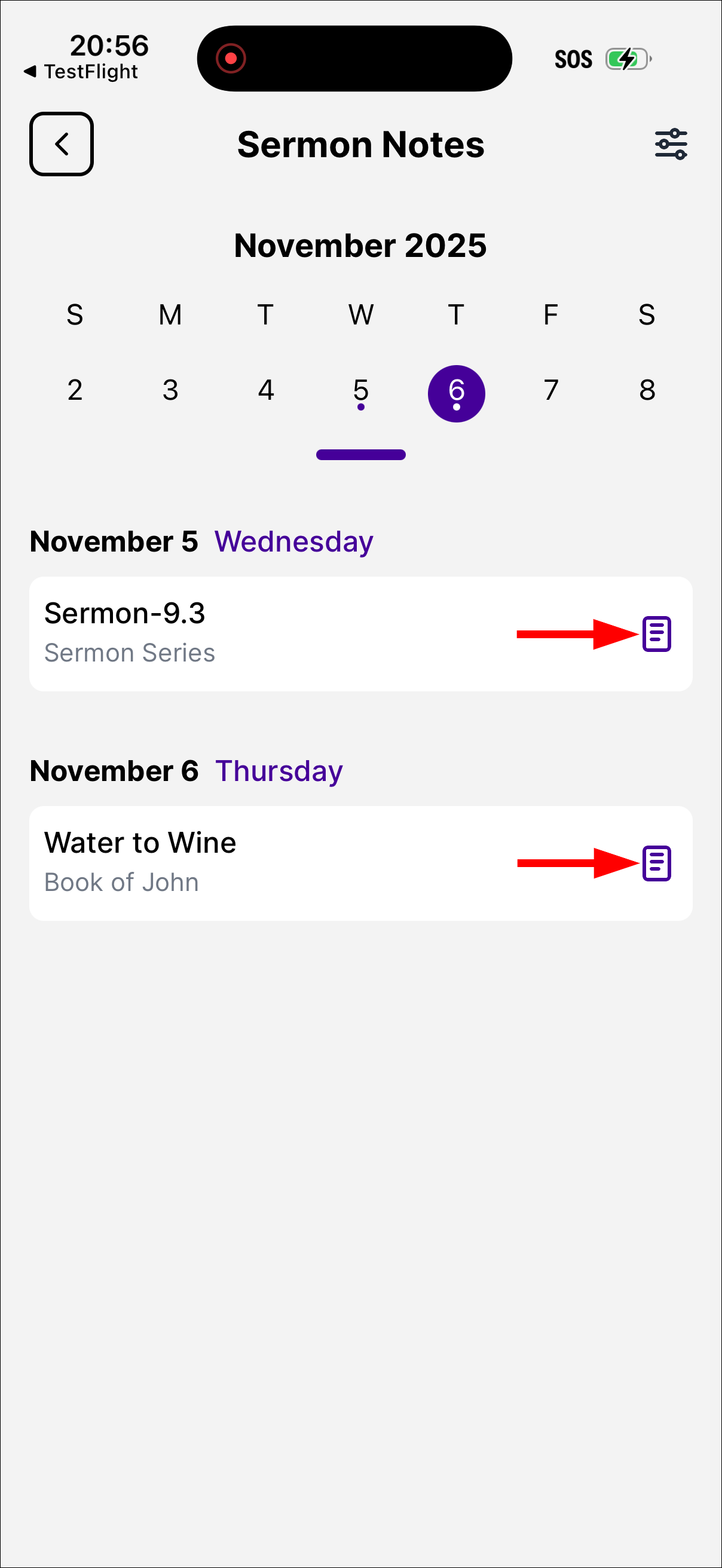
Each sermon is displayed as a card showing:
Sermon name
Sermon Series name
Notes icon - appears if you have already created notes for that sermon
Tip
Pull down on the sermon list to refresh and load the latest sermons.
Filtering Sermons
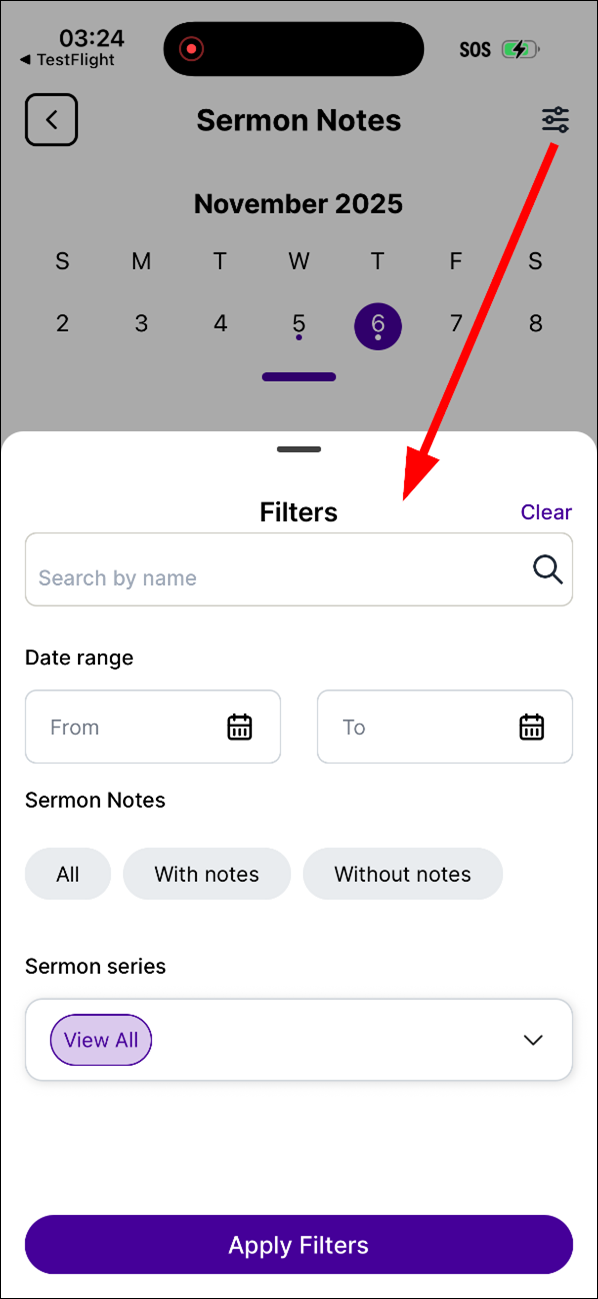
Tap the filter icon in the top-right corner to access the following filter options:
Search by Name - Enter keywords to search for specific sermons by name.
Date Range - Select a From date and To date to filter sermons within a specific time period.
Sermon Status
All - Shows all sermons
With notes - Shows only sermons where you have created notes
Without notes - Shows only sermons where you haven’t created notes yet
Sermon Series- Select one or more sermon series to filter sermons by series.
After selecting your filter options, tap Apply Filters to see the filtered results. To remove all filters, tap the filter icon in the top-right corner and then tap Clear Filters.
Viewing Sermon Details
Tap on any sermon card to open the Sermon Details screen.
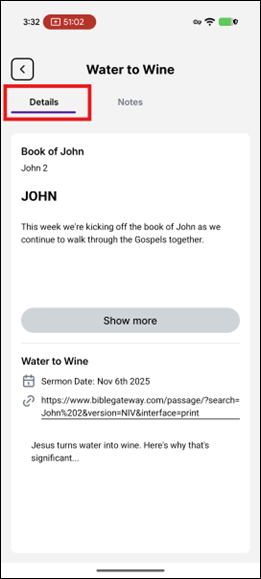
The details screen has two tabs:
Details - Shows sermon information, description, and series details
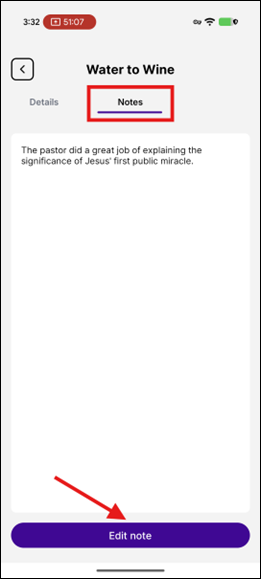
Notes - Shows your personal notes for this sermon (or allows you to create them)
Viewing Your Notes
Your notes are displayed in a scrollable text area on the Notes tab.
You can scroll through long notes to read everything you’ve written.
Pull down on the notes area to refresh and ensure you’re viewing the latest version.
Creating Notes
Navigate to a sermon’s details page.
Tap the Notes tab at the top.
If you don’t have notes yet, you’ll see a message: “No sermon notes found” with a book icon.
Tap the Create button at the bottom of the screen.
A bottom sheet will slide up with a text input field.
Type your notes in the text field. You can write as much as you need.
Tap Save to save your notes.
You’ll see a confirmation message: “Note created successfully”
Editing Notes
Navigate to a sermon’s detail page.
Tap the Notes tab.
Your existing notes will be displayed in the main area.
Tap the Edit note button at the bottom.
The bottom sheet will open with your current notes pre-filled.
Make your changes to the text.
Tap Save to update your notes.
You’ll see a confirmation message: “Note updated successfully”
Tips for Using Sermon Notes
Take Notes During or After Listening - Create notes while listening to a sermon or immediately after to capture fresh insights.
Use the Notes Icon Indicator - Look for the notes icon on sermon cards to quickly identify which sermons you’ve already taken notes on.
Filter by Notes Status
Use the “With notes” filter to review sermons you’ve already noted.
Use the “Without notes” filter to find sermons without existing notes.
Edit Anytime - You can edit your notes at any time - add more thoughts, correct information, or expand on previous notes.
Search and Filter - Use the search and filter options to quickly find specific sermons when you want to review or update your notes.
Troubleshooting
See the following sections if you encounter issues while using Sermon Notes.
Notes Not Saving
Ensure you have an active internet connection.
Make sure you’ve entered at least some text in the notes field (notes cannot be empty).
If you see an error message, try again or check your connection.
Can’t See Notes
Pull down to refresh the notes view.
Make sure you’re viewing the correct sermon.
Check that you’re on the “Notes” tab, not the “Details” tab.
Notes Icon Not Appearing
The notes icon only appears on sermon cards for sermons where you have created notes.
If you just created notes, try refreshing the sermon list.
Additional Information
Notes are personal - they are only visible to you.
Each sermon can have one note per user - editing replaces your previous note.
Notes are saved to your account and will be available across all your devices when you’re logged in.
Notes are automatically synced when you save them.