
Meetings for Month Report
- Meetings for Month
This report is a listing of every meeting for a specific month for every Involvement included in your search results (after you filter the list). It shows how many attended each meeting as well as the average for the month.
This report is laid out as follows:
The Involvements are listed (alphabetically by Involvement name) on the left side.
The names of the leaders are in the next column.
The dates of the meetings are headers across the top of the report.
The attendance is displayed under each meeting date.
The average for the month is in the last column.
The title is the month and year selected.
Totals will be at the bottom of the report.
Generate the report
- Step 1
Go to Involvements > Search
Select the appropriate Program-Division-Schedule and click Filter
Tip
You do not need all 3 of the filters mentioned above. Use whatever filters will present the list of classes you want included in the report.
- Step 2
Select Blue Toolbar > Cloud > Reports > Meetings For Month.
Use the calendar to select any day in the month you want to use for the report.
Click Run
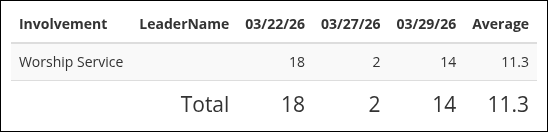
Sample Meetings for Month
Tip
This is an online report. If you want to put it into Excel or Numbers, select and copy everything from the headers through the last Involvement. Do not include the title or the totals line. Then paste it into Excel or Numbers.
See also
Latest Update |
10/23/2026 |
Updated the Involvements > Search and Meetings For Month menu paths and Involvement terminology, and replaced the sample report screenshot.