
You Must Agree Statement Extra Value for an Involvement
This is an option for an online registration that has Terms on the Messages tab of the Involvement.
On the payment page, registrants are required to type their full name and click an I agree to the terms and conditions button before they can continue. Below this, a default statement displays along with the Terms content.
That default statement is: “You must type your full name and click on “I agree to the terms and conditions” above for you or your minor child before you can continue with confirmation.”
You can replace this default statement with your own custom text by using the YouMustAgreeStatement Extra Value on the Involvement.
Role Requirements
Users must have the Edit role to add or modify Involvement Extra Values.
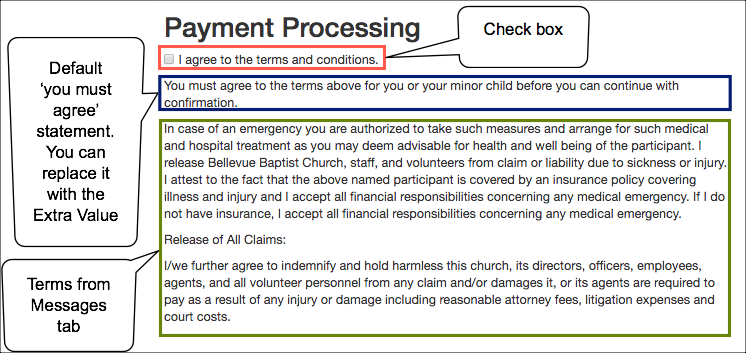
Sample registration payment page showing the Full Name field, I agree button, and Terms statement.
Create the Extra Value
- Step 1
Go to the Involvement and select the Settings > Extra Values tab. Click the Show Adhoc Values button.
- Step 2
Press the green Add/Update Extra Value button.
- Step 3
Enter the following information for the Extra Value.
The Type = Text (multi-line)
The Name =
YouMustAgreeStatementThe Text Value will be whatever text you want to display in place of “You must type your full name and click on “I agree to the terms and conditions” above for you or your minor child before you can continue with confirmation.”
For example: “By checking the box above you are agreeing to abide by the Terms.”
Tip
If you do not want this type of statement to display at all, you can enter
as the Text Value for the Extra Value.
Then only the Full Name field, I agree button, and the actual Terms will display.
See also
Latest Update |
07/03/2026 |
Updated default message text, fixed terminology (Organization to Involvement), corrected button names.