
Goer Funding Pages
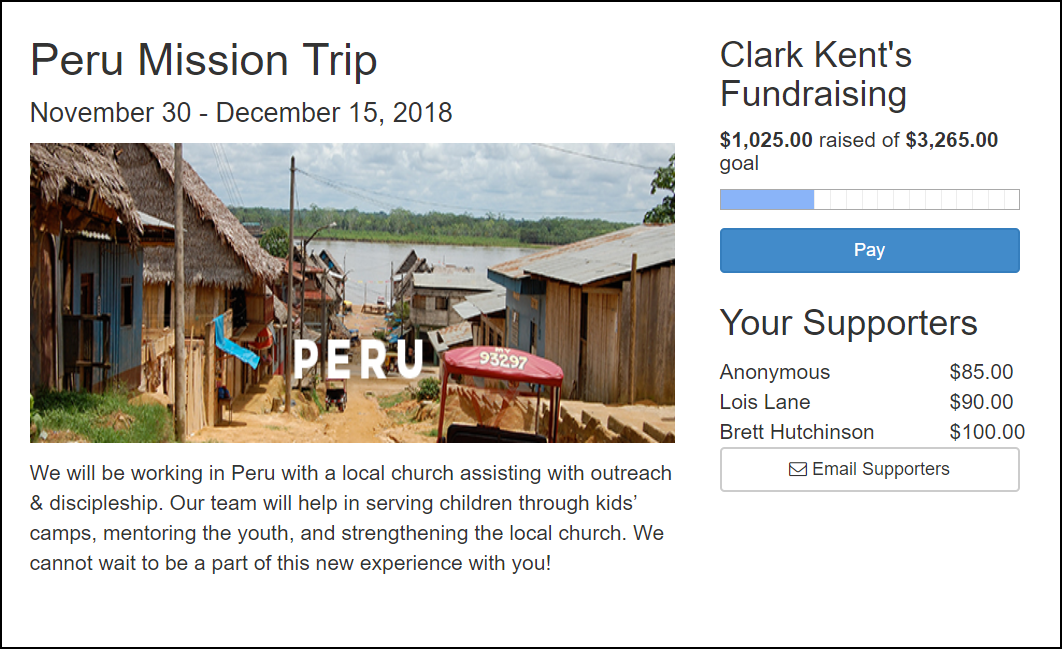
The optional Goer Funding Page gives a more detailed look at the funding status of trip participants. In addition to the funding goal and the amount currently raised, there is a graphical progress bar and a list of supporters.
The page offers two possible views: one for Goers and another for supporters who have been given the link. Three settings on the mission trip Involvement control whether these views are available and what they include. These settings are found in the Mission Trip Settings section on the Involvement’s Settings > General page.
Settings
- Enable Funding Pages
When this setting is turned on, a funding page is available for trip participants. They can access it from their profile on the Involvement > Registrations page by clicking the Funding Page button.
- Enable Public Funding Pages
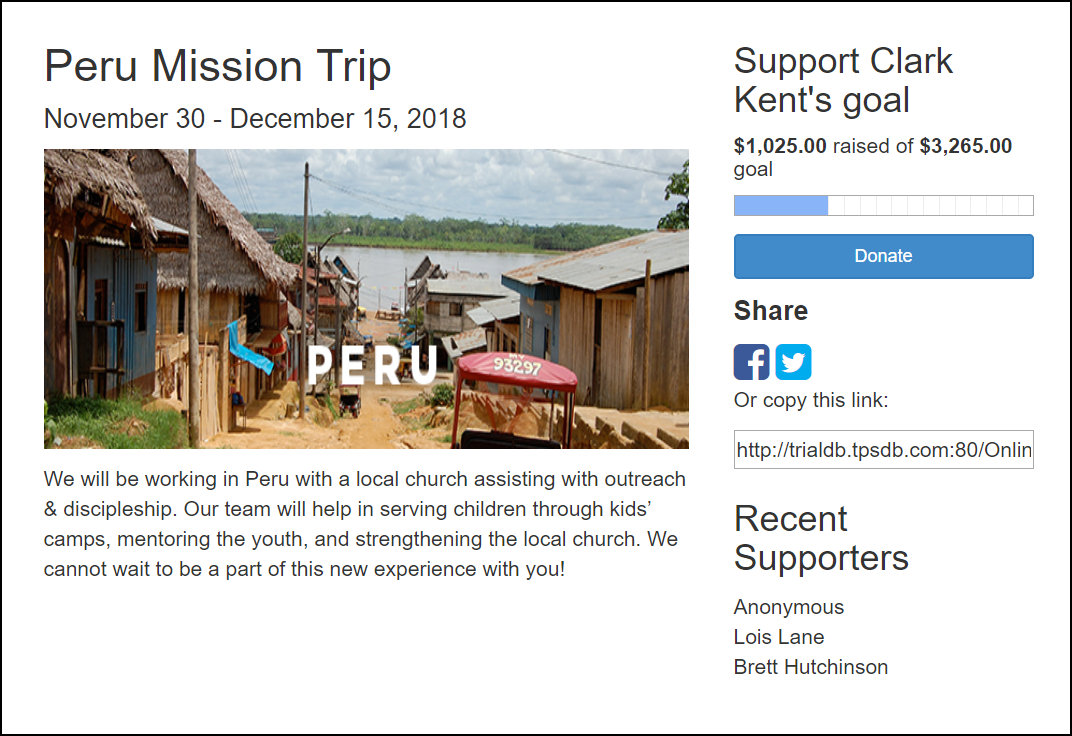
This makes a Goer’s funding page available to anyone who has been given the link. Enabling this setting has two additional effects:
The support link included in emails to supporters is redirected to the public Goer Funding Page instead of the usual donation page.
Facebook and Twitter links, as well as the page’s URL for copying, are displayed on the Goer’s view of the funding page. These links also appear on the public view.
- Show Public Funding Amounts
When this setting is on, the public page will include the amounts that supporters have given, just as is always the case on the Goer’s own view of the page.
Elements of the Goer Funding Page
The trip name, dates, image, and description are all customizable based on several Involvement settings.
Trip Name — This is the name of the Involvement.
Trip Dates — Set on the Involvement’s Settings > Attendance tab by entering dates in the First Meeting Date and Last Meeting Date fields.
Image and/or Description — Set on the Involvement’s Settings > General tab in the Description field.
Tip
Size your image before uploading. You can use the online resizer tool at https://www.picresize.com/ if you have no other way to change the size. It handles both resizing and cropping.
Amount — Based on the Fee set on the Registration > Fees tab. A Goer can only raise additional funds beyond their goal if the RaiseBeyondRequired Ad Hoc Extra Value is enabled on the Involvement, or if the system-level Missions: Raise Beyond Required setting is set to True.
Tip
To allow all mission trip Involvements to let participants raise beyond their required amount, navigate to Admin > Advanced > Settings > Features > Registrations and set Missions: Raise Beyond Required to True. Setting this to False (the default) allows each Goer to raise only what is required.
Donate Button — A Donate button (in place of the Goer’s Pay button) takes supporters to the normal support page for that Goer. You do not need to configure this button.
Links to Share — If you Enable Public Funding Pages, this shows public links for Facebook, Twitter, and the page’s URL to copy.
Recent Supporters — The list of supporters will show amounts only if the Show Public Funding Amounts setting is enabled. If one or more supporters gave anonymously, “Anonymous” appears in the list along with the total anonymous amount.
See also
Posting a Support Link on a Website
In addition to the personal Goer funding page explained above, you can post a link on your church website so that anyone can select a Goer and make an online donation. The link format is:
https://MyChurch.tpsdb.com/OnlineReg/90165?GoerId=0
Replace MyChurch with your church’s TouchPoint database name.
Replace 90165 with the Involvement ID# for your Mission Trip Involvement, found in the URL of the Involvement.
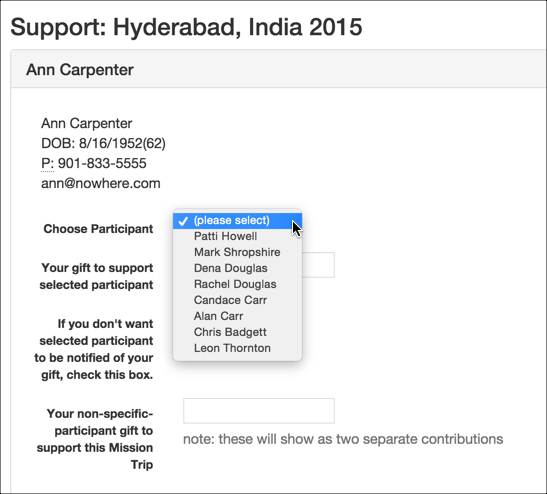
GoerId=0 allows the supporter to select someone from a drop down list of current participants.
Only enrolled members will display in the drop down list.
Note
If you wish to require supporters to donate to a specific trip participant before they can contribute to the trip in general, set the administration setting MissionSupportRequiredGoer to true.
Manually Configuring a Support Link for a Specific Goer
To create a link for a specific participant (e.g., to post on Facebook or share directly):
https://mychurch.tpsdb.com/OnlineReg/123?GoerID=789
Replace mychurch with your church’s TouchPoint database name.
123 is the Involvement ID for the mission trip
789 is the People ID for the participant
The ?GoerID=789 directs the donation to that specific person. Without it, the link would be a registration link for the trip.
Note
A staff member can also send a Support Link by copying it from the Goer’s Member Dialog (right-click the SupportLink and Copy Link Address) and pasting it into an email.
Sending a Direct Support Link to Goers
You can send a direct link to Goers through an Involvement email so they have their own Support Link without having to retrieve it through their Member Dialog or people record. Use this URL format:
https://yourchurch.tpsdb.com/OnlineReg/[InvId]/Giving/{peopleid}
Replace [InvId] with the Involvement ID number, which you can find in the URL when viewing the Involvement (e.g., if the URL is /Org/12345, the Involvement ID is 12345). The {peopleid} is a replacement code that will automatically resolve to each recipient’s People ID when sent through an Involvement email.
Latest Update |
06/12/2026 |
Added Direct Support Link section