Scheduler Email Templates
TouchPoint includes several email templates for the Scheduler. You can find them at Admin > Communication > Email Templates, which requires the Admin or EmailTemplates role.
Scheduler templates are limited to the SchedulerTemplates role. Only templates limited to this role appear in the Template lists on an Involvement’s Registration > Communication tab.
Note
The standard Scheduler templates are protected: their name, role, and the Delete and Save Template buttons are hidden. To customize one, open it and click Clone. The copy (named with “Copy” at the end) keeps the SchedulerTemplates role, so it appears in the Template lists, and you can edit and save it like any other template. Then select your copy on the Registration > Communication tab of the Involvement.
Warning
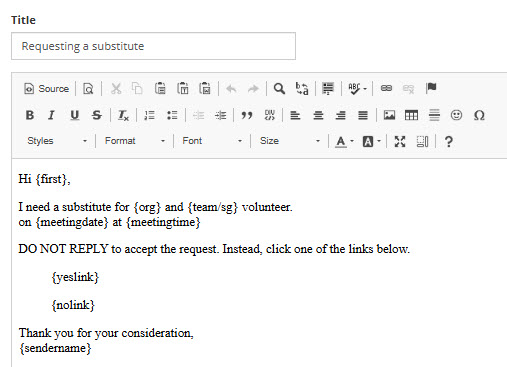
When you clone a Scheduler template, keep every replacement code from the original in your copy, typed exactly as it appears (including the curly braces). TouchPoint fills in each code by matching its exact text, so a code that is deleted, misspelled, or retyped differently is not replaced, and features that depend on it stop working. For example, without {yeslink} and {nolink}, recipients of a Sub Request or Request More People email have no links to accept or decline. You can move codes and change the wording around them.
In the Scheduler Sub Request Template, keep the text and {team/sg} together, including the word “and”. TouchPoint replaces only that exact phrase (with the Team and Sub-Group name), so {team/sg} on its own stays in the email as typed.
- Scheduler Registration Confirmation Template
This is the email that is sent when a person reserves a time slot in a registration. The email subject uses the email title from the template.

- Scheduler Reminder Template
This is the email that is used for both Reminder Email 1 and Reminder Email 2. The subject uses the email title from the template.
This template is designed to be sent out automatically through the involvement. Do not use this template to send manual reminder emails through a Time Slot.
Note
Reminder emails are sent only if a number is entered in the Days Before box and the reminder is not marked Disabled on the Involvement’s Registration > Communication tab.

- Scheduler Request More People Template
This is the email that is sent when you click the three vertical dots menu to the right of a Team and select Request More People. The subject uses the email title from the template.

- Scheduler Sub Request Template
This is the email that is sent when a registrant makes a Sub Request. The subject uses the email title from the template.
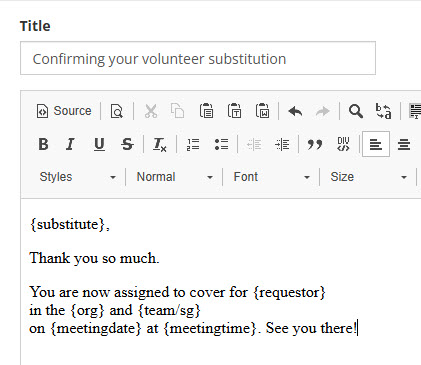
- Scheduler Sub Confirmation Template
This is the email that someone receives when they agree to a registrant’s Sub Request. The subject uses the email title from the template.
- Staff Notification Templates
These templates notify the people selected in Email From on the Involvement’s Registration > Communication tab. They are fully protected; you cannot rename, delete, or save changes to them.
Scheduler Commitment - Notify - Sent when someone commits to a meeting.
Scheduler Commitment Canceled - Notify - Sent when someone cancels a commitment.
See also
Latest Update |
10/21/2026 |
Added role requirements, explained how to clone the protected templates, documented the staff notification templates, added a warning about keeping replacement codes in cloned templates, and noted that the Reminder template is for automatic reminders only.