
Email Attendance Notices
- Attendance Notices
There are several purposes for this notification:
Notifies the leader that attendance has been entered and new guests added.
Provides a link to the most recent Meeting for their Involvement.
Provides the means (with an interactive list) for leaders to contact their absent members who have missed at least 2 consecutive meetings.
Provides the means (also with an interactive list indicating the guests last visit date) for leaders to contact their recent guests.
Someone on staff triggers these notices after all attendance (including new guests) has been entered for a specific set of Involvements.
These emails go to each person in those Involvements that meets both of the following criteria:
Is a leader in one of those Involvements (has a Leader type of Member Type) AND
Has at least Access role.
Note
To clarify about leaders who receive these notices. A lay leader with Access and OrgLeadersOnly would receive these notices if he is a leader in one of the Involvements.
Also, a staff member with Access with or without any other roles and who is a leader in one of the Involvements will receive the emails, too.
A My Data user that is a leader will not received these emails.
- Consecutive Absents Threshold
This determines how many consecutive absents an Involvement member can have before appearing in the Attendance Report. The default is 2, but you can change the absents threshold on the Involvement.
See also
Lay Leaders and TouchPoint
If you haven’t already, please consider giving each of your leaders a user account in TouchPoint with Access and OrgLeadersOnly roles. If you want them to be able to take attendance for their Involvement you can add Attendance role and those leaders can take attendance using the App on his mobile device.
Send Email Attendance Notices
If you would like to Preview the Notices before you send them you have that option.
- Step 1
Find the Involvements for which you want to send the notices.
Go to Involvements > Search from the main menu.
Select the Program and Division (Schedule is optional).
Click Search
- Step 2
Select from the Blue Toolbar, Envelope icon > Email > Email Attendance Notices
Click OK when you see the prompt.
Tip
You can also filter for just one Involvement by entering its name in the name field. Or you can enter other information in that field to narrow your result to fewer Involvements than the entire Division.
Example
Select Life Groups (Program) and Students (Division). Enter 10th Grade in the Name field to send to only the 10th Grade classes within the Students Division.
Results
Any system user (with at least the user role Access) who is a leader in any class included in the selection will receive this email notice.
Also, any leader in a Parent Involvement for any of these Involvements will also receive the notices, if he has at least Access role.
The person who triggered the Email Attendance Notices will receive an email with the subject Attendance Emails Sent. The body of the email will contain a list of everyone who was sent a notice along with the name of the class, its location and the date and time of the last meeting.
Change the Consecutive Absents Threshold
If you prefer for this to be something other than 2 meetings, you can change it on the Involvement.
- Step 1
Go to the Involvement and the Settings > Attendance tab.
- Step 2
Click Edit and enter a number in the Consecutive Absent Threshold field and click Save.
Change Subject of Email Attendance Notices
The default subject for these emails is “Attendance Reports Ready for Viewing.” However, you can create your own text for the subject of the notices, if you prefer. Your System Admin can do this in the Settings.
Navigate to Admin > Advanced > Settings > System > Administration and enter the text you want as the subject in the Subject Attendance Notices setting.
See also
Preview Attendance Notices
Before sending these to your leaders, you can filter for your list of Involvements, then select Blue Toolbar > Envelope > Email > Preview Attendance Notices. This will display all the classes in your filter with exactly what will display in the email.
This preview can be generated even if you are not the one sending the notices. This is a great feature for staff leadership to use to oversee their classes. Staff will not, of course, be enrolled in every Involvement for which they are responsible, and therefore will not receive the emails. So, by looking at the Preview, they can monitor those classes. This Preview has active links to the following:
Meeting
Involvement
People records for individuals
Email addresses
Notice in the screenshot below that the list displays the phone number and email address for your absentees and guests. That makes it so easy to contact the person right then.
The Absent Members will display first, showing the number of consecutive absences and their last attended date.
If the person has attended something else during that time period, you will also see Recent Attends followed by a number. This lets you know that, even though the person did not attend your class, they did attend something.
The number will tell you how many times they attended something else when they were absent from your class.
Next will be any Recent Guests. The guests will be any guests who would still be on the roll sheet that week, based on the Roll Sheet Guest Weeks setting. They will be in alphabetical order and will have their last attended date.
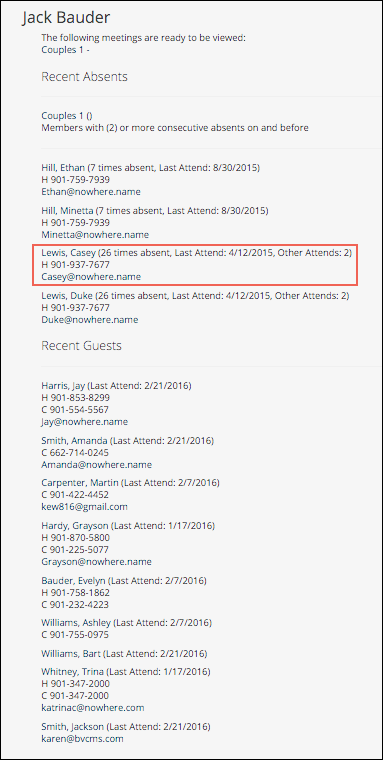
Sample Attendance Notice
Latest Update |
12/15/2025 |
Update terminology for Involvements