
Chat
Chat gives your members a place to talk to each other inside TouchPoint. Conversations are attached to Involvements, so the youth group, a small group, or a serving team each get their own chat that only the people you intend can see. Members use Chat from the mobile app, and can also use it from their own person record in TouchPoint. Staff with the right role can moderate every conversation from the Chat Management page.
Note
Chat requires version 3.10 or later of the mobile app, and it must be turned on for your church before anyone sees it. See Enabling Chat below.
How Chat Works
Conversations come from Involvements
A chat is created for an Involvement when chat is enabled on that Involvement. The chat carries the Involvement’s name, and a link on the conversation opens the Involvement itself.
Open and closed chats
An open chat is discoverable church-wide: any member who can use Chat sees it in the list of chats available to join. A closed chat is only visible to the members of its Involvement.
Joining is always up to the member
Enabling chat on an Involvement does not add anyone to the conversation. The chat simply appears in the member’s list of available chats, and the member chooses to join. Nobody receives messages from a chat they have not joined.
Members can leave, and come back
Leaving a chat stops the messages and removes it from the member’s joined list. The chat returns to their available list, so they can re-join it later.
Chat in the Mobile App
Members open Chat from the app’s side menu, under the Connect group. The menu item only appears when chat is enabled for the church and the member meets the age requirement.
The chat list
The list is split into two sections:
Joined Chats - the conversations the member belongs to, newest activity first, with an unread count and a preview of the last message. A muted chat shows a crossed-out bell.
Available to Join - the conversations the member can join but has not, each with a Join action.
A search box filters the list by conversation name, and pulling down refreshes it.
Reading and sending messages
Tapping a conversation opens the thread. The composer at the bottom sends a message with Send Message. Where photo attachments are allowed, Attach Photo or Video adds a photo to the message, and Remove attachment clears it before sending.
Reacting, replying, reporting, and deleting
Pressing and holding a message opens its menu:
Reply quotes the message in the composer; Cancel reply discards the quote.
Report flags another member’s message for staff review.
Delete Message appears on the member’s own messages and removes the message from the conversation.
The same menu offers quick reactions. Tapping a reaction already on a message adds the member to it, and tapping it again takes them off.
Chat Info
Tapping the conversation name at the top of a thread opens Chat Info, which has two tabs:
Members - everyone who has joined, searchable by name.
Settings - Mute Notifications or Unmute Notifications for the conversation, and Leave Chat, which asks Are you sure you want to leave this chat? before removing the member.
A chat can also be muted or unmuted directly from the chat list by pressing and holding the conversation.
Chat on a Person’s Record
Members can also use Chat in TouchPoint from the Chat tab on the Communications tab of their own person record. The tab only appears on the signed-in user’s own record - chat acts as that user, so no one can read another person’s conversations from their record. It also requires that chat be enabled for the church and that the user meet the age requirement.
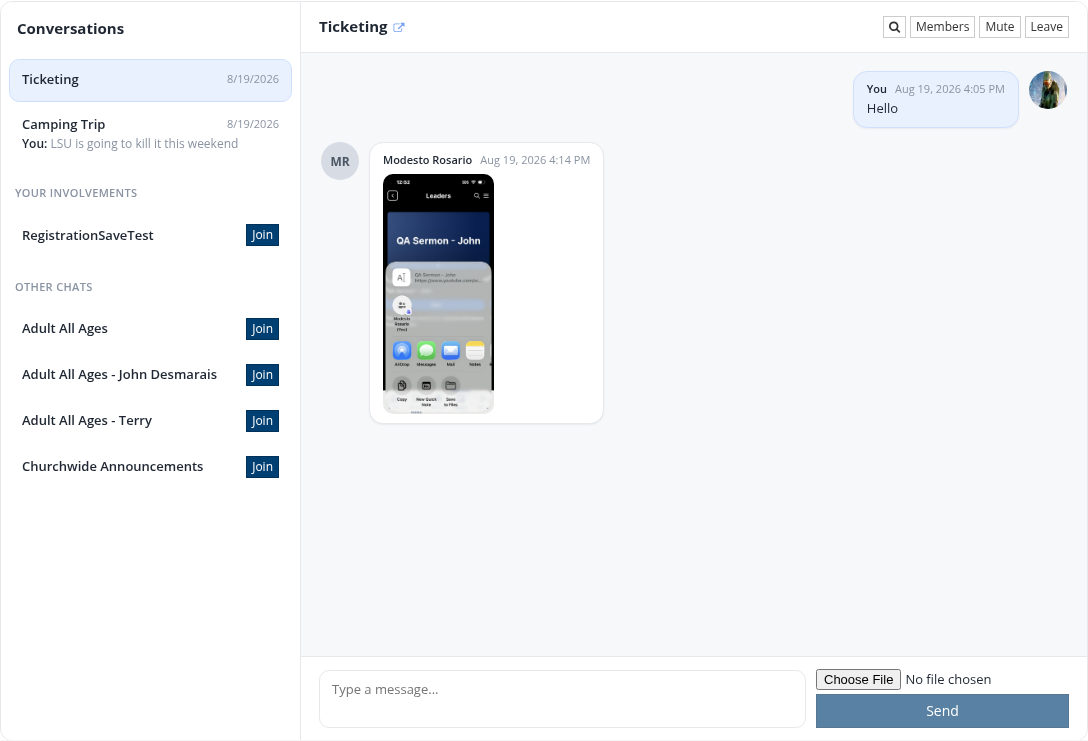
The Chat tab, with joined conversations and available chats on the left and the selected conversation on the right
The left column lists the member’s Conversations with unread counts, followed by the chats they can join:
Your Involvements - available chats for Involvements the member belongs to.
Other Chats - other open chats anywhere in the church.
Join on either list adds the member to the conversation and moves it up into Conversations.
Sending messages
Type in the composer at the bottom of the thread and click Send. Where photo attachments are allowed, a file picker appears next to Send; images sent in the conversation can be clicked to enlarge.
Message actions
Hovering a message shows quick reactions and a ⋯ menu. On another member’s message the menu offers Reply and Report.
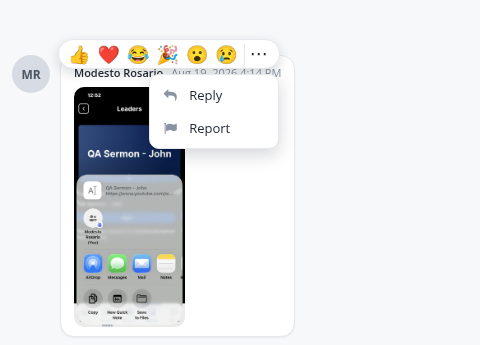
Reactions and the actions available on another member’s message
On the member’s own messages the menu offers Reply, Edit, and Delete. A deleted message is replaced with (message deleted) in the conversation.
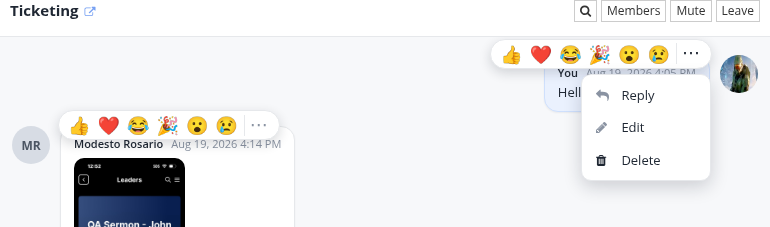
The actions available on the member’s own message
Replying quotes the original above the composer, where the reply can be canceled before sending.

Replying to a message
Searching a conversation
The search icon above the thread opens a keyword search of the messages in the selected conversation. clear returns to the full conversation.

Searching the messages in a conversation
Members, muting, and leaving
Members lists everyone in the conversation, searchable and paged, with each name linking to that person’s record. Mute and Unmute control notifications for the conversation, and Leave removes the member from it - the chat then returns to their available list so they can re-join.
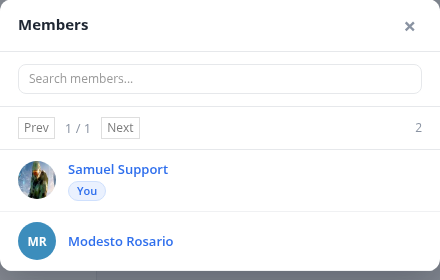
The members of a conversation
Chat Management
Chat Management lets staff read, moderate, and clean up every chat in the church. It is found at Admin > Communication > Mobile App > Chat Management and requires the ManageChat role. The menu item only appears when the mobile app is on version 3.
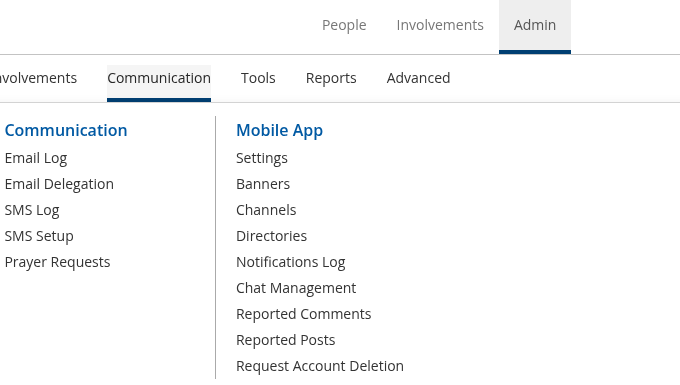
Chat Management on the Admin > Communication menu
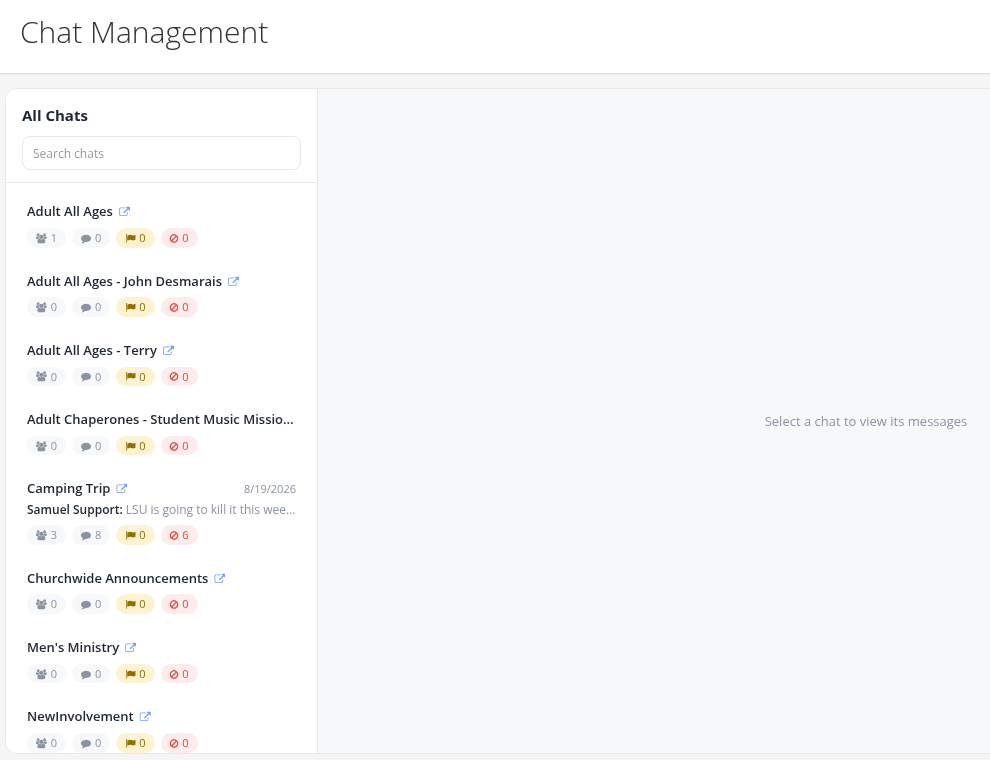
The Chat Management page
All Chats on the left lists every conversation, with Search chats to filter by name. Each row carries counts for its members, messages, reported content, and blocked content, so conversations needing attention stand out.
Selecting a conversation opens it on the right, with three views:
Chat - the messages in the conversation.
Blocked & Reported - only the content that has been reported or blocked.
Members - the people in the conversation.
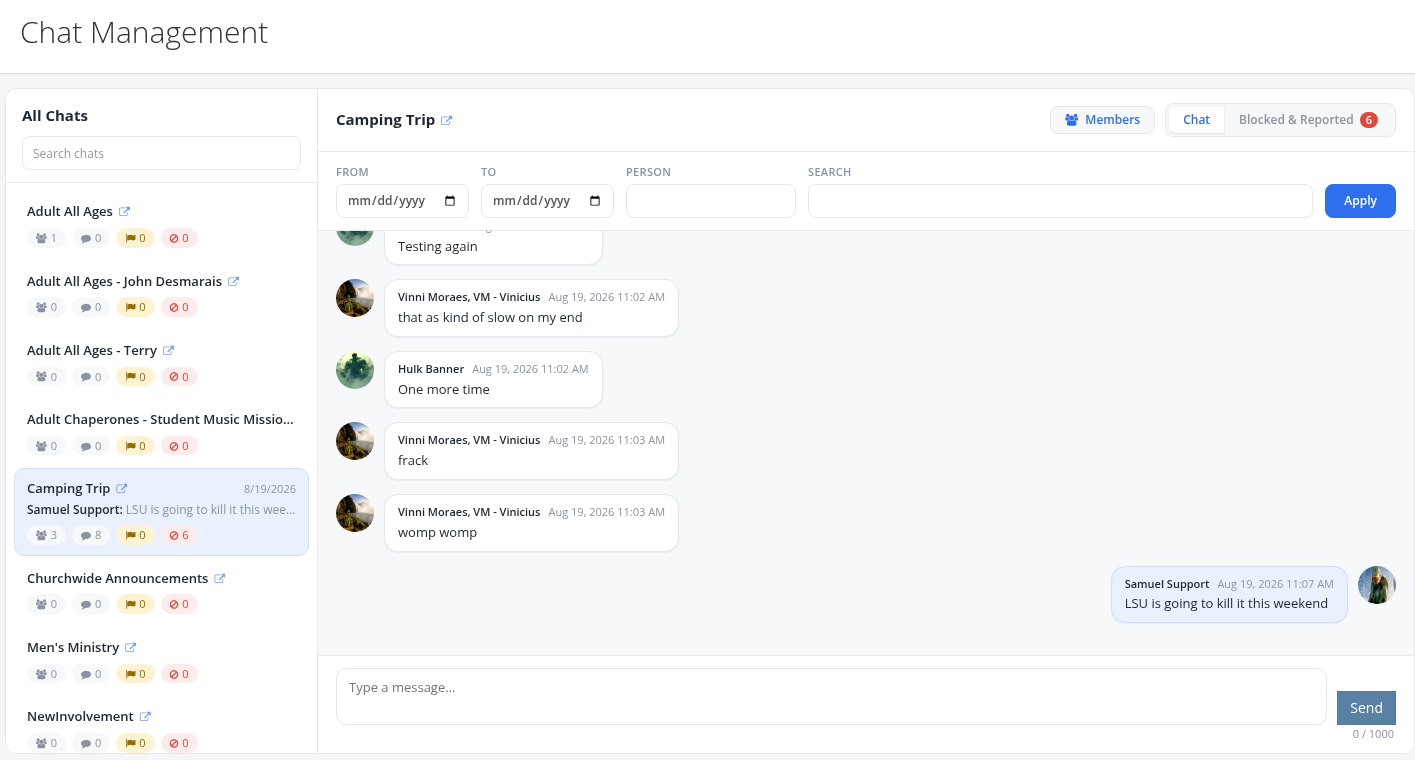
A conversation selected in Chat Management
Filtering the messages
FROM and TO limit the messages to a date range, PERSON limits them to one member of the conversation, and SEARCH limits them by keyword. Apply runs the filter.
Moderating messages
The ⋯ menu on a message offers Report, to flag it for review, and Delete, to remove it from the conversation.
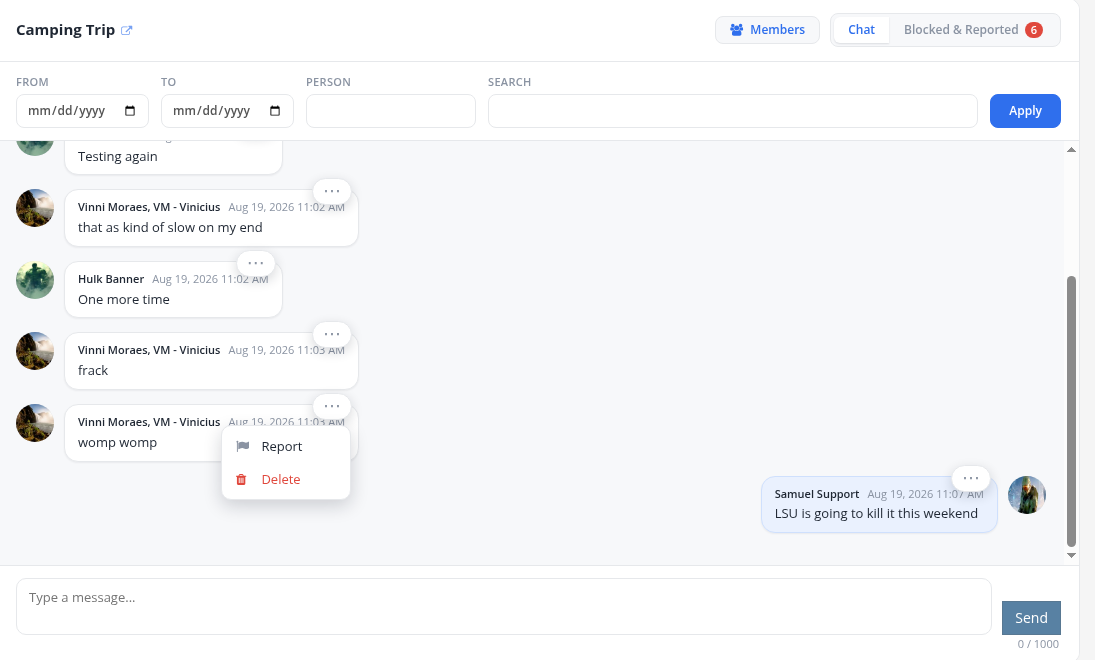
The moderation actions on a message
Blocked & Reported gathers that content in one place. Reported messages are shown as written; blocked messages and images are hidden behind View blocked content, so staff choose when to look at them.
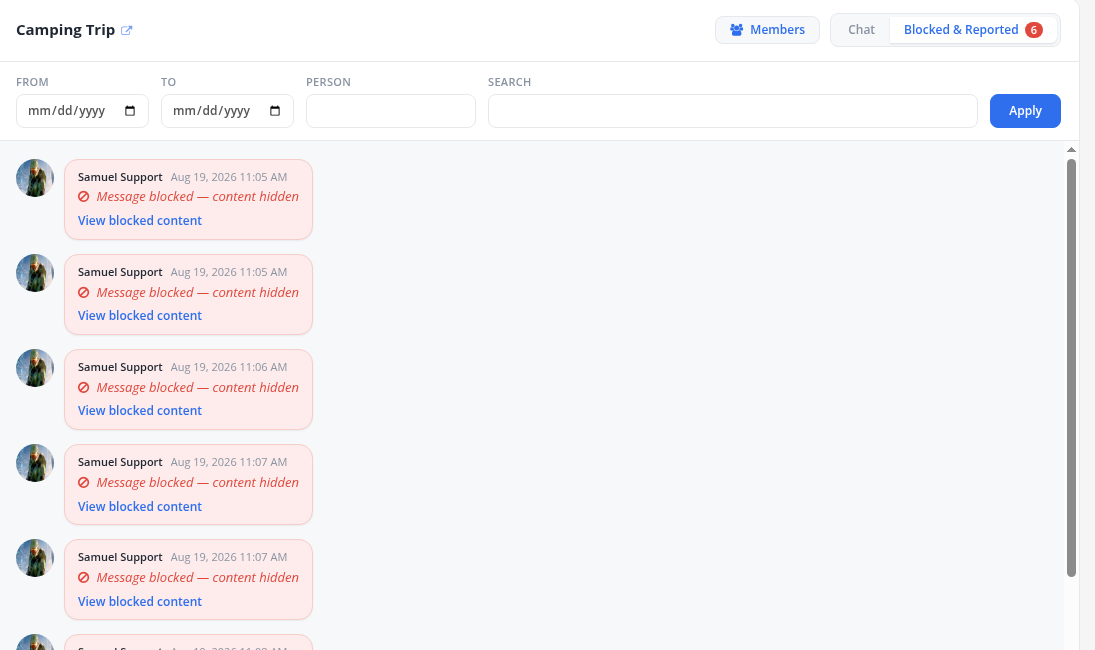
The Blocked & Reported view
Managing members
Members lists the people in the conversation, searchable and paged. Remove takes a member out of the conversation, and Block also keeps them from rejoining it. The Include removed and Include blocked checkboxes bring those people back into the list with a badge showing their status, where a removed person can be added back to the conversation and a blocked person can be unblocked.
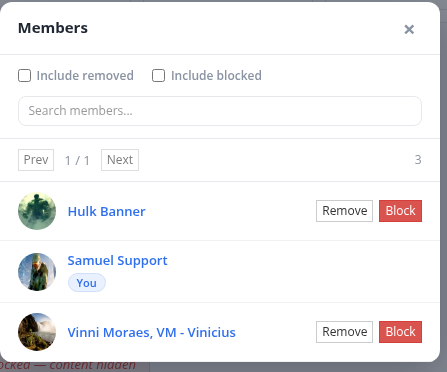
The members of a conversation in Chat Management
Note
A manager reading a conversation they have not joined can moderate it, but must join it before sending a message of their own.
AI Content Moderation
Chat content is checked by Azure Content Safety before it reaches the conversation, and blocked messages and photos are never posted. See AI Content Moderation for the Content Safety settings, the content categories, and the severity levels.
Enabling Chat
The chat settings are found under Admin > Communication > Mobile App > Settings on the Features > Chat tab, and require the Admin or AppAdmin role.
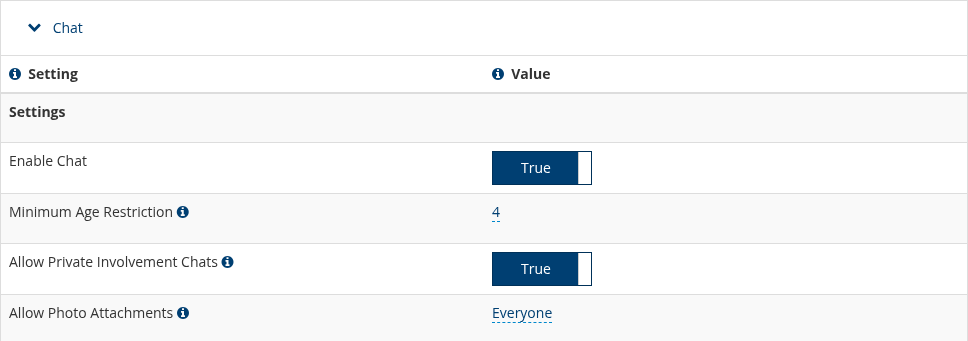
The Chat settings, with the values from one church’s database
Setting |
Purpose |
|---|---|
Enable Chat |
Turns Chat on for the church. Must be True before anyone sees Chat in the app or on their person record |
Minimum Age Restriction |
The youngest age allowed to use Chat. Members below the selected age do not see Chat at all |
Allow Private Involvement Chats |
Allows Involvements to have closed chats, visible only to the members of the Involvement |
Allow Photo Attachments |
Who may attach a photo to a message: Everyone, leaders only, or no one |
Note
When no minimum age is selected, TouchPoint requires members to be at least 18. A member with no birth date on their record is judged by their position in the family instead: adults may use Chat, children may not.
When Allow Photo Attachments is set to leaders only, the leaders are the people with a leader attendance type in the Involvement the chat belongs to. Everyone else can still read the photos others post, but cannot attach one.
Turning on chat for an Involvement
Chat is enabled one Involvement at a time, on the Involvement’s Registration > Mobile tab:
Enable Mobile Chat creates the chat for the Involvement and makes it available to join.
Closed Chat keeps the chat visible only to the members of that Involvement. Leave it unchecked for an open chat that anyone in the church can find and join.
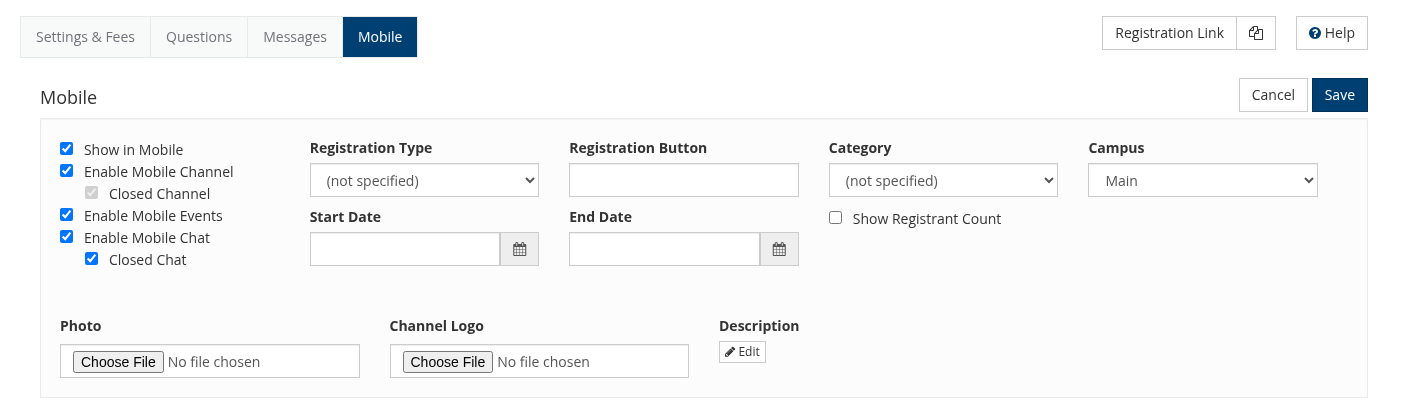
The chat settings on an Involvement’s Registration > Mobile tab
Caution
Clearing Closed Chat on an existing chat makes its conversation discoverable church-wide. Review who is in the chat before opening it up.
Notifications
Members are notified of new chat messages through the app’s push notifications, which have their own church-wide setting. See Push Notifications for Enable Chat Notification and the rest of the notification settings. Members can mute an individual conversation for themselves from Chat Info in the app or with Mute on their person record.
Use Case
To give a youth small group a private place to talk, set Enable Chat to True for the church and set Minimum Age Restriction to an age the whole group meets. Then open the small group Involvement, check Enable Mobile Chat and Closed Chat on its Registration > Mobile tab, and tell the group the chat is waiting for them. Only members of that Involvement see the chat, and each of them joins it from Available to Join in the app. A leader with the ManageChat role can read the conversation and remove anything inappropriate from Chat Management.
Latest Update |
09/15/2026 |
Moved the AI Content Moderation details to their own article and linked to it from the Chat article.
New article documenting the chat feature: how members use Chat in the mobile app and on their own person record, how staff moderate conversations from Chat Management, and the church-wide and Involvement settings that enable Chat, including age and photo attachment permissions.