
The Connect Card Capture Queue
The Capture Queue is the worklist of every connect card that has been captured. It is where you see which cards still need to be reviewed, which ones TouchPoint could not read, and which ones have already been imported.
Open it from the Capture Queue tab of People > Connect Card. The number on the tab is the count of cards waiting to be reviewed.
Summary and Filters
The blue bar at the top shows the Total Cards, the number that Needs Review, and the number Imported for the cards matching your current filters.
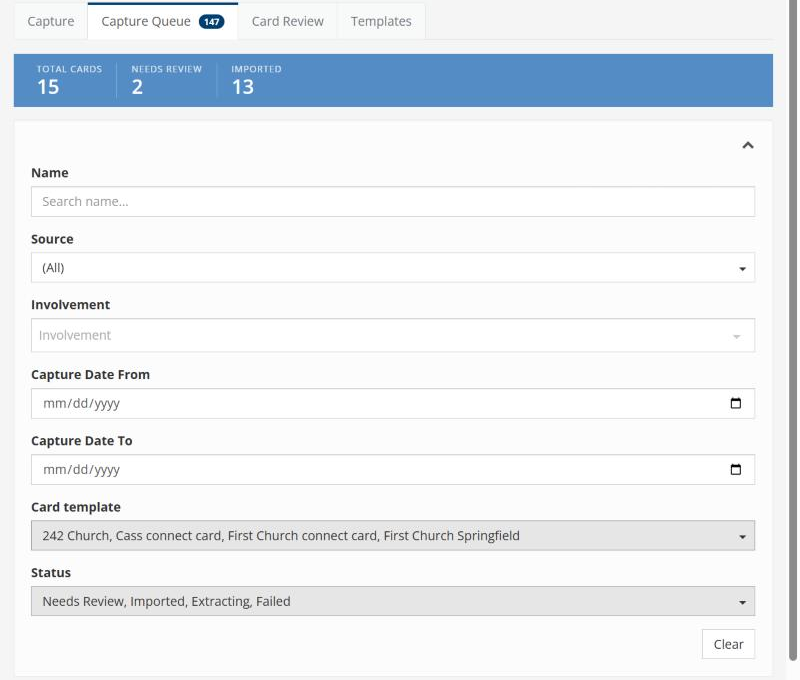
The Capture Queue summary bar and filters
By default the queue shows only the cards that still need attention — those with a status of Needs Review, Extracting, or Failed. Use the filters to find other cards:
Name — searches the name read from the card and the other values on it.
Source — Image or PDF.
Involvement — the involvement the card was captured for.
Capture Date From and Capture Date To
Card template — one or more templates.
Status — one or more statuses. To see cards that have already been imported, add Imported.
Click Clear to return to the default list. Click the arrow at the top right of the filter box to collapse or expand it. TouchPoint remembers your filters, the collapsed or expanded state, and your column choices the next time you open the queue in the same browser.
The Card List
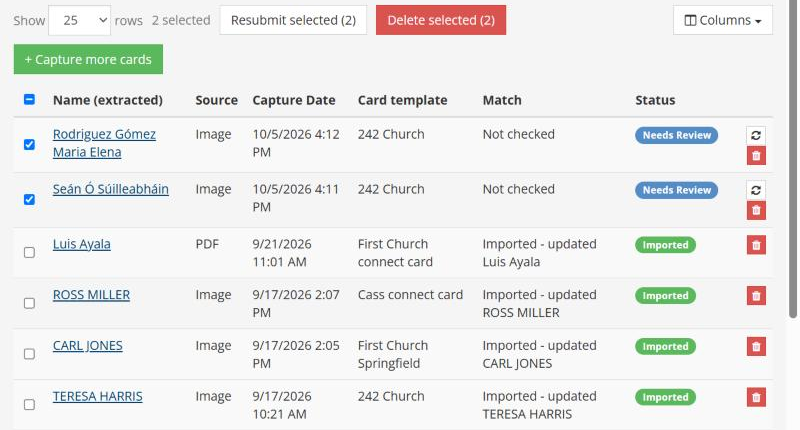
The card list, with two cards selected
The list shows each card’s Name (extracted), Source, Capture Date, Card template, Match, and Status. Use the Columns button to add the Involvement Name and Meeting Date/Time columns, or to return to the default columns. Use Show to display 25, 50, or 100 cards per page, and Prev and Next to page through the list.
Click a card’s name to open it on the Card Review tab. For an imported card, the name opens the person’s record instead.
Status
Needs Review — the card has been read and is waiting for someone to review and import it.
Extracting — TouchPoint is still reading the card.
Failed — TouchPoint could not read the card. Resubmit it to try again.
Imported — the card has been imported into TouchPoint.
Rejected — a reviewer rejected the card. No person was created or updated.
Match
The Match column shows the result of the check for people already in TouchPoint: Not checked until the card is opened for review, the number of possible matches, No matches found, or — once the card is imported — whether a new person was created or which person was updated.
Resubmitting Cards
Resubmitting has TouchPoint read a card again from the image that was already uploaded — there is no need to upload the card again. Resubmit a card that Failed, or one that was read with a template that did not match the card.
To resubmit one card, click the refresh icon at the end of its row.
To resubmit several, check the boxes beside them and click Resubmit selected.
In the Resubmit dialog, keep the card’s current template or choose a different one, and click Resubmit. Any values already read from the card are replaced. Imported cards cannot be resubmitted. If some of the selected cards cannot be resubmitted, the reason is shown beneath each of those cards.
Deleting Cards
To delete one card, click the trash icon at the end of its row. To delete several, check the boxes beside them and click Delete selected. You are asked to confirm before anything is deleted.
Warning
Deleting a card cannot be undone. Deleting a card that has already been imported removes it from the queue but does not change the person record that was created or updated.
+ Capture more cards takes you back to the Capture tab.
Latest Update |
10/07/2026 |
Created article for the new Connect Card feature.